You may need to send a signed document, save a receipt, or convert a few pages of notes into a PDF online. Using the right app on an Android device can make this fairly easy.
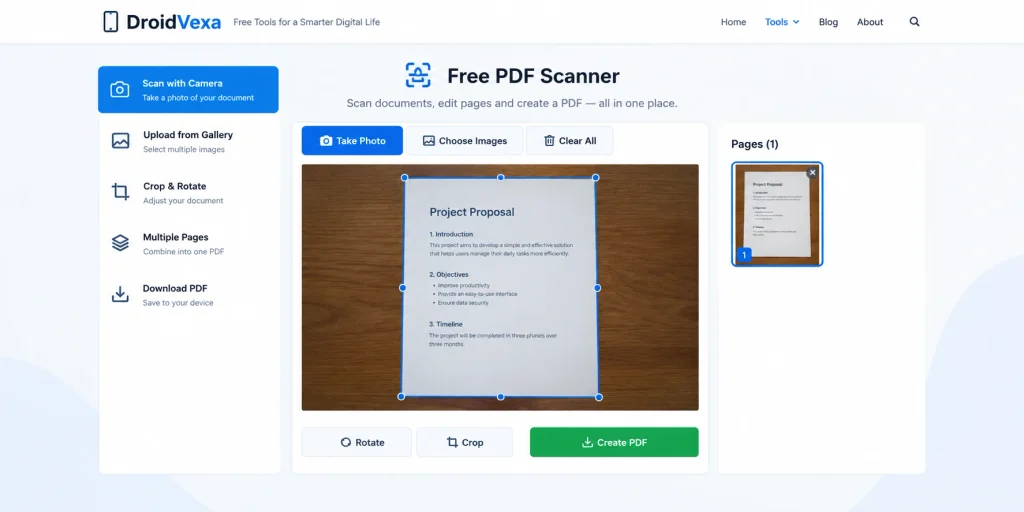
Free PDF Scanner
Scan documents or select photos and combine them into one PDF.
No document selected.
However, there are a variety of scan apps to choose from. Some are great for quick scans, some allow you to extract text, organise your documents or save documents to the cloud. Some have premium features!
Which of the best free pdf scanner app for Android you use will depend on what you want to do with your documents. If you’re only scanning a receipt once a week, you probably won’t need the same features as a student regularly uploading documents or an office worker scanning multiple pages.
Below we’ll take a look at 5 apps (Google Drive, Files by Google, Adobe Scan, Genius Scan, and Microsoft OneDrive) and show you what each is great for, what the limitations are, and how to create a clear PDF without needing to purchase a scanner.
Real Screenshot
Quick Overview Of Free PDF Scanners
Before downloading an app, take a look at this quick overview. It shows what each app is best for.
App Best For Main Benefit Limitation(s)
Google Drive General Document Scanning Scan and save documents to drive Can require using cloud storage
Files by Google Easy PDF Creation Save scans in an organised folder Not a full PDF editor
Adobe Scan Forms & Text Recognition Has dedicated scanning and OCR features May have some premium features
Genius Scan Regular Document Scanning Detects and organises documents May have some premium features
Microsoft OneDrive Microsoft Users Saves your scans in a cloud workflow Dependent on your OneDrive storage
The free features, account requirements and app design can vary, so be sure to check the latest official listings.
1. Google Drive – Great For General Scanning
Official Instructions: https://support.google.com/drive/answer/3145835?hl=en
If you’re already using Google Drive to save school work, receipts or personal documents, this would be a logical first choice to try. It allows you to scan and save your documents.
You can scan paper documents and save them as PDFs. Depending on the scanning options available, you can also edit the page borders, add multiple pages, and choose where to save your files.
What can Google Drive do?
For example, if you need to save a receipt for a few months, putting it in your wallet can be unreliable and scanning it into a clearly named PDF instead of taking a regular photo will help you find it more easily amongst hundreds of other photos.
This can be used for printed forms, letters, invoices, and class notes.
Google Drive is a great option for:
Creating a PDF with multiple pages. Saving your scanned documents into your Google Drive. Easily accessing your files on supported devices once logged in. Sharing your document via drive.
How To Scan
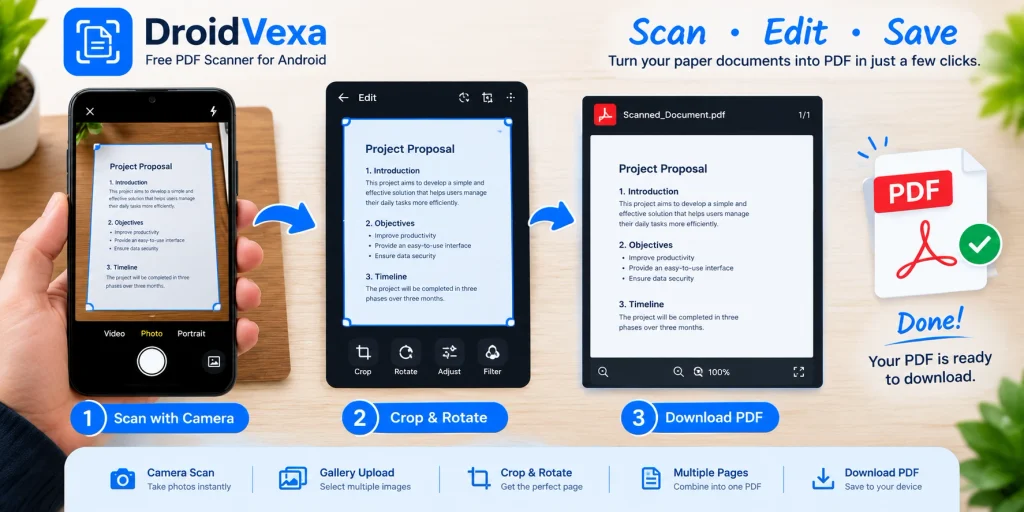
Open the Google Drive app on your android phone. Look for the scan or camera option. Place your document on a flat surface with plenty of light. Scan your page and check the crop. Add any extra pages and save your PDF.
The main issue here would be the use of cloud storage. Any files saved will take up your storage space and you’ll generally need to be connected to the internet to access them on another device.
Best for: If you need an easy scanner for general documents and are already using Google services.
step by step guide check screenshot;
2. Files by Google – Great For Organised PDFs
Official Instructions: https://support.google.com/files/answer/15598575?hl=en
This app helps with finding your scans by saving them as PDFs in a specific folder.
Great for students, people who like to keep paper receipts, or if you frequently need to upload documents.
What makes it different?
This app includes both scanning and basic file management. The scanning features are well documented, allowing you to crop, rotate, filter, and merge your pages.
Your completed scans will be saved as PDFs in the Scanned folder in your downloads.
For example, if you need to scan multiple pages of class notes for an exam, this allows you to create one file for easy storage, uploading, or sharing.
Things To Consider
As this is mainly a file manager, it may not be suitable as a complete PDF tool. If you need to make complex changes to your PDFs, have advanced document workflows or extra export options, you may want to use a dedicated scanner or PDF editor.
Also, your PDFs won’t automatically be backed up online.
Best for: Android users who want an easy way to scan documents and easily find your PDFs in your phones file manager.
3. Adobe Scan – Worth Considering For Searchable Documents
Official Info: https://www.adobe.com/acrobat/mobile/scanner-app.html
Adobe Scan has been created specifically to convert paper documents into digital documents. If you frequently scan printed forms, invoices, receipts, business cards, or multiple page documents, this may be worth considering.
One key feature is Optical Character Recognition (OCR).
What is OCR?
A basic scanned PDF will simply be an image of your original document. Whilst it may be easy to read, you may struggle to search for specific names or sentences.
OCR attempts to recognise any printed text in your scanned document. If this works, it will allow you to search for specific text and possibly copy it.
This can be useful if you have a long invoice, multiple pages of printed notes, or multiple documents to search.
Features To Consider
Document capture. Crop and edit scanning. Multiple page PDF. Text recognition for supported documents. Adobe document integration.
Is it free?
Whilst it is free to download, not all features will be free to use. Some editing features, services, or limitations may depend on your current plan.
Be sure to check the latest app listing and terms within the app to ensure you’re not missing out on a premium feature. If you’re simply scanning and saving general documents, try using the free features first.
Also be sure to check how your scans will be stored and processed if you’re scanning confidential documents.
Best for: If you frequently scan documents and want dedicated scanning tools. Especially if you want searchable text.
4. Genius Scan – Great For Regular Document Scanning
Official Website: https://thegrizzlylabs.com/genius-scan/
Another dedicated scanning app. This is great for people who have more than just the occasional receipt to scan. It allows you to capture, organise, and export your documents.
It claims to allow you to:
Detect documents. Correct perspective. Scan multiple pages. Organise documents.
When Would This Help?
If you frequently receive invoices on paper, or need to keep records for your small business, this allows you to scan your documents, crop your pages, and save them with useful names. Genius Scan includes tools to help you do this. Depending on your version and plan, you’ll have different features.
Privacy
The publisher mentions that scanning will occur on your device. However, not all optional features, backups, or sharing will be fully offline.
Before scanning ID documents, financial documents, or signed contracts be sure to check the latest privacy policy and where your files will be stored.
Just because you’re saving the document locally, doesn’t mean it’s secure from someone viewing your unlocked phone.
Best for: If you want a dedicated scanning app with document organisation tools.
5. Microsoft OneDrive – Practical For Microsoft Users
Official Guidance: https://support.microsoft.com/en-us/lens/retirement-of-microsoft-lens
If you’re already using OneDrive for work, school, or personal documents this can make sense to keep your scanned documents together.
Microsoft recommend using OneDrive as an alternative to Microsoft Lens. This is important as some old articles may still be recommending Lens. However, they’ve retired the scanning functionality in 2026.
Why Use It?
If you’re working within a Microsoft based workflow, this is a great option. You won’t need to create your document in one app and then move it to another cloud service. Your supported scans will be kept with your other files.
May be useful for:
Work forms. Documents needing to be accessed on supported devices. If you’re already organising your files in OneDrive. If you want your scans to be in an existing cloud storage.
Limitations
Your scanned files will use your available OneDrive storage. Microsoft also mention that their scanning workflow doesn’t allow you to save your scans locally like a local file saving workflow.
If your main aim is to create a PDF in your local storage on your phone, Files by Google may be a better option.
Best for: If you’re already using Microsoft services and want your scanned documents in one place in the cloud.
Which PDF Scanner Should I Use?
Depending on what you need to do, you’ll have an easier time choosing.
Situation Suggested App Reason
Receipt/signed document scanning Google Drive Easy in-built scanning
Saving a PDF to your phone Files by Google Saves scans in a dedicated folder
Searching for text in printed documents Adobe Scan Dedicated OCR features
Regular document scanning Genius Scan Document based workflow
Working with Microsoft documents OneDrive Works well with existing cloud workflow
These recommendations are based on the documented features and intended use, and aren’t a controlled test across multiple Android devices.
A great way to decide which app to use is to scan the same simple document in 2 apps. Take note of the cropping, readability, number of steps, file size, and how easy it is to find your saved PDF. This will give you more insight into what you personally need.
How To Create A Clear PDF Using Your Android Phone
Even with a great app, if you don’t have good lighting or your camera isn’t in focus you may end up with an unclear document. A few simple tips can help.
1. Flatten Your Paper
Having a flat document will make it easier to scan. Ensure you have a surface with enough contrast so the app can pick up the edges.
2. Good Lighting
Try to use bright indirect sunlight or a well lit room. Be careful not to cast any shadows from your hand or phone, especially if scanning small receipts.
3. Position Your Phone Above
If you angle your photo, your square page may look warped. Keeping your camera parallel will help the app to produce a more natural looking scan.
4. Check Cropping
Sometimes the automatic edge detection can cut off your signature, page number, or part of your receipt. Be sure to check all 4 corners.
5. Check All Pages
If you’re creating a multi-page PDF ensure that your pages are in the right order and that you haven’t missed the last page. Small errors can be fixed easily.
6. Name Your File
Naming your file something descriptive such as ‘electricity-bill-october.pdf’ or ‘biology-notes-chapter-2.pdf’ will make it easier to recognise.
Avoid putting any personal sensitive information in your file names, especially if you’re going to be sharing them.
7. Open Your Completed PDF
Don’t rely on the preview in your scanning app. Open your saved document to check any small text, totals, dates, and signatures.
What’s The Difference Between A Scan And A Searchable PDF?
A scanned PDF will generally be a digital image of your paper. This means it will look like your original document, however, you may struggle to search for any text.
A searchable PDF uses OCR to recognise any text in your scanned pages. This can help you to find names, reference numbers, or sentences without having to read through each page.
OCR is great for printed documents but can cause errors. Blurry images, unusual fonts, small text, and handwriting can cause issues with accuracy.
Always double check any recognised information against your original paper for important documents. This is especially important for financial details, addresses, ID numbers, and legal details.
Not all scanning apps will have the same OCR features and some may have limitations or extra costs.
Are Free PDF Scanning Apps Secure?
As you may be scanning documents containing personal information such as names, addresses, signatures, account details etc, you should consider the privacy of the app.
A few simple things to consider:
Where are your files being saved? A file saved on your phone will be different to one uploaded to the cloud. Be sure to understand where your files are being saved. Permissions. A scanning app will need access to your camera. Be cautious with any permissions that don’t seem necessary. Privacy. Read through the privacy information provided by the publisher. They should explain how they process, save, and use any optional online services. Secure your phone. Ensure you have a strong screen lock. Don’t leave any confidential documents in folders that others can easily access. Sharing. Ensure you’re only sharing with the right person by checking your sharing settings before sending a link to the cloud.
A scanned PDF won’t automatically be password protected. Be sure to use the right security features if your documents contain sensitive information.
Frequently Asked Questions
What is the best free PDF scanner app for Android?
For general documents Google Drive is a great option. Files by Google is a good option if you want an easy local file workflow. Adobe Scan is a great option if you want dedicated scanning and OCR features.
It will depend on what features you need.
Can I scan a document without a scanner?
Yes! If you have a compatible Android phone and scanning app you can scan most general documents such as receipts, forms, letters, and class notes.
However, you may still want to use a physical scanner for large amounts, unusual paper sizes, or specific office requirements.
Can I scan multiple pages into one PDF?
Yes! All apps covered in this guide have multiple page scanning features. However, this will vary between apps. Be sure to check your pages are in the right order before saving.
Can I scan without an internet connection?
Depending on the app and device you may be able to scan some parts without an internet connection. However, you may need to be connected to save to the cloud, use any account services, or use some advanced features.
Try testing the workflow before scanning if you know you won’t have a reliable internet connection.
Why is my PDF blurry?
Your camera may not have been in focus, there may not have been enough light, or your document may have moved whilst scanning. Wipe your lens clean and ensure there’s good lighting. Rescan your page.
If your image is clear but your PDF is blurry, check your app for any image quality or export options.
Is Microsoft Lens available for new scans?
Microsoft have retired the scanning functionality in Lens in 2026. They recommend using OneDrive instead. If you’re following old tutorials be sure to check the latest guidance from Microsoft.
Do I need a paid app to create PDFs?
Not necessarily. You may be able to use the free scanning features for your receipts, forms, and general documents. However, paid plans can offer extra tools and services. Whether they’re worth it depends on your requirements.
Final Thoughts
You don’t need to download 5 scanning apps for your general documents. Start with the one that suits your file storage and usage.
Google Drive is a logical choice for general scans that need to go into the cloud. Files by Google is great if you want your PDFs organised on your phone. Adobe Scan is worth considering if you need text recognition and cleaning up your documents. Genius Scan offers another dedicated scanning workflow. OneDrive is great if you’re already using Microsoft services.
Be sure to check the latest free features and privacy terms. Try scanning a document similar to what you usually scan.
The best scanning app for you won’t necessarily be the one with the most features. It will be the one that creates a readable PDF, saves it where you expect, and is easy to find.
[Note: App features and free plan limitations can vary. This comparison is based on documented information from the publishers and what they’re intended for. It should not be seen as a hands on test of all features on all Android devices.]